

The Scenario Every SCCM Admin Has Lived Through
You built a perfect OSD Task Sequence. It references your OS image, boot image, driver packages, the Configuration Manager client package, and a dozen applications. You distribute it to your Distribution Points (DPs), test it in the lab/pre-prod, and it works perfectly.
Three weeks later, a technician in a branch office runs the same Task Sequence and gets something like this:
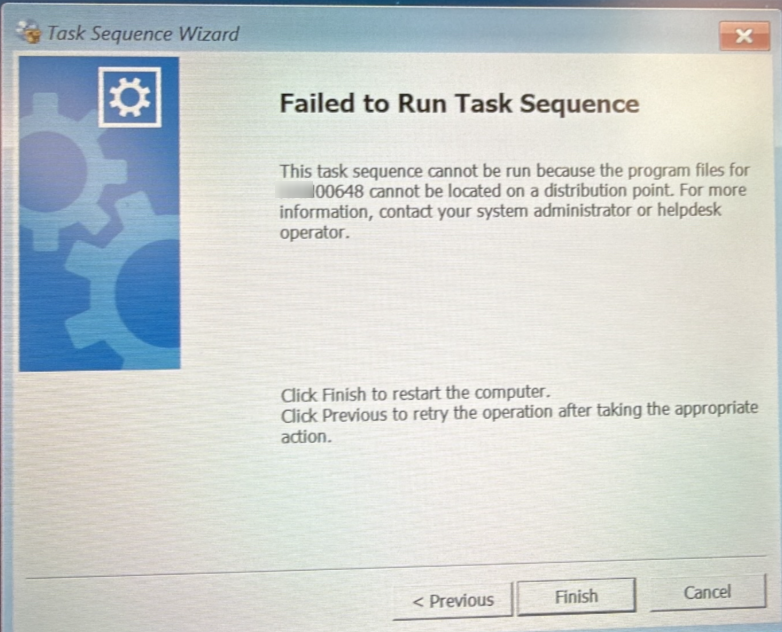
“Failed to Run Task Sequence. This task sequence cannot be run because the program files for CB100648 cannot be located on a distribution point.”
The build stalls. The technician has no idea what “CB100648” is. and by the time the ticket reaches you, you are staring at a Package ID with zero context. You don’t know which DP is missing it, and you don’t know if this is the only failure or one of a dozen.
If you only have a few DPs, this is a quick check in the console. But if you manage 30+ sites across multiple regions (which is exactly what I do), that “quick check” easily turns into a full day of work.
Why the SCCM Console Makes This Harder Than It Should Be
The console does have a “Content Status” node under Monitoring. But if you’ve actually tried to use it to answer, “What failed to distribute for this specific Task Sequence, across all my DPs?”—you know its limits:
- It is organized by content, not by Task Sequence. The console has no simple way to say, “Show me every piece of content referenced by TS X.” You either browse content one object at a time, or you already know exactly what to look for.
- Packages and Applications live in different views. A Task Sequence usually references both legacy Packages and modern Applications. The console tracks their distribution status through separate mechanisms, so there is no single place that shows them both together.
- Redistribution is slow. If a package failed on four different DPs, you have to click into the package, find each DP, right-click, and select “Redistribute.” That is a lot of clicking.
- There is no batch action. There is no “Select All Failed” button. It is inspect-one, fix-one, repeat.
- No audit trail. The console shows you the current state. It doesn’t hand you a CSV of what was failing before you took action, or a log of exactly what you triggered and when. (This is very important if you are working on a client’s environment or need to cover yourself when someone asks, “Did we already redistribute that?”)
None of this is meant to be a knock on the console—it simply wasn’t built for the “audit an entire Task Sequence’s content health in one shot” use case. But if you are running OSD at scale, that is exactly the use case you need most.
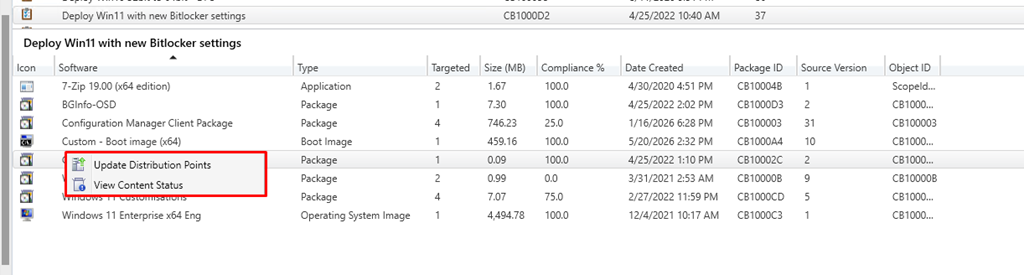
What I Built Instead: TS Content Health Check
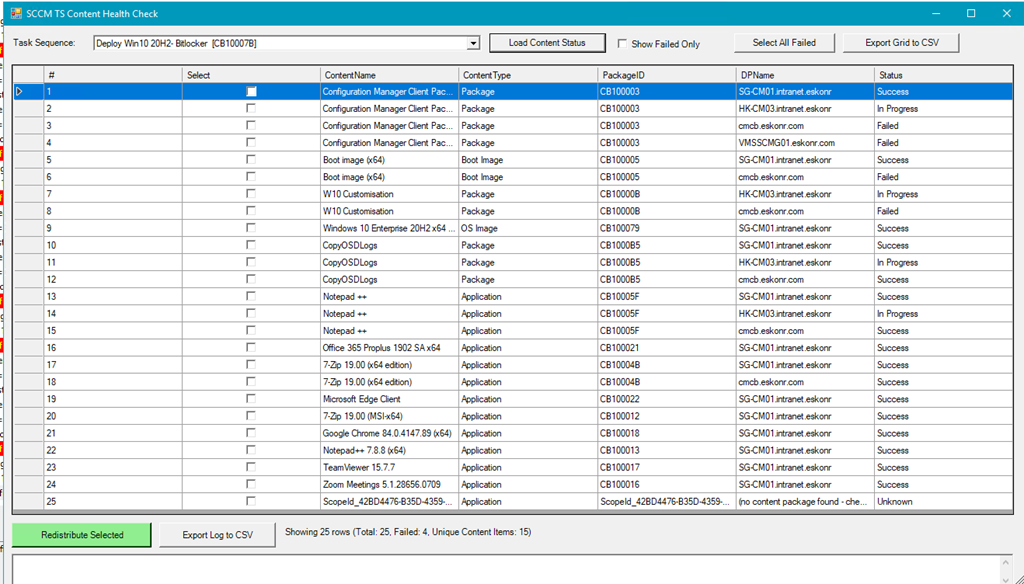
I built a PowerShell + WinForms GUI tool that does exactly one job well: point it at a Task Sequence, and it tells you the real distribution health of everything that Task Sequence depends on—Packages, Boot Images, OS Images, Driver Packages, and Applications—broken down per Distribution Point.
How it works (Step-by-Step):
- Pick a Task Sequence. The tool loads all your Task Sequences into a dropdown.
- Scan it. It looks at every piece of content your TS uses, including any nested/child Task Sequences. It even finds the Applications inside the TS XML and resolves them to their real names.
- See the status. It pulls the true per-DP status for every content item (Success, In Progress, or Failed) and shows the actual DP server name.
- Filter to the junk. Click “Show Failed Only” to hide all the healthy rows and see just the problems.
- Select and Redistribute. Click “Select All Failed,” check the rows you want, and hit “Redistribute Selected.” It pushes the content to exactly those DPs—not a wasteful “redistribute to every DP” call.
- Export your proof. Save the status grid to a CSV (your “before” report), and export a separate CSV log of every redistribution action you triggered (your “what did I actually do” report).
Built-in Audit Logging
One of the best parts of this tool is that it doesn’t just fix things silently—it writes everything down.
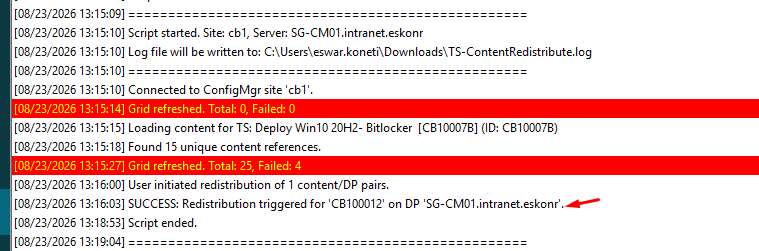
Every time you run the tool, it automatically creates a TS-ContentRedistribute.log file in the same folder as the script. Here is exactly what it tracks:
- When you load a Task Sequence: It records the exact time you loaded it, how many content items it found, and how many were marked as Failed.
- When you refresh the grid: It logs the total count and failure count so you can see if the health improved after redistributing.
- When you click “Redistribute”: It gives you a clear, timestamped log of exactly what happened.
-
If it worked, it says:
SUCCESS: Redistribution triggered for 'CB100012' on DP 'SG-CM01.intranet.eskonr'. -
If it failed, it says:
ERROR: Failed to redistribute...
-
- When the script ends: It logs the end time, so you have a complete audit trail of your entire session.
Why this is useful: If you need to report to your boss (or a client) about what you fixed, you don’t have to guess. You just open the .log file, copy the lines that show “SUCCESS: Redistribution triggered,” and you have absolute proof of the exact package, exact DP, and exact time. It also saves you if you accidentally redistribute something and need to double-check what happened later!
Why This Matters More As You Add More DPs
In a 3-DP environment, this tool is a nice convenience. But in a 30+ site environment, it is the difference between seeing your content health at a glance, and finding out content is broken when a technician calls mid-deployment.
That “CB100653” error at the top of this post is exactly what this tool is meant to catch before it happens. Run this against your OSD Task Sequences proactively, see which DPs are quietly failing, and fix them before a technician ever sees that warning screen.
How It Works (For the Curious)
If you want to adapt this script for your own environment, here are a few technical notes:
- It uses the native ConfigMgr PowerShell module (
Get-CMTaskSequence,Get-CMApplication) for the easy parts. - It uses direct WMI queries against the SMS Provider to grab the exact distribution status (because the standard cmdlets don’t always expose per-DP data cleanly).
- Application status was tricky. An Application’s
CI_UniqueID(which looks like a long GUID) is not what shows up in the DP distribution tables. Each Application’s Deployment Type has its own package-style content ID. The tool maps this automatically so Applications get the same accurate per-DP status as Packages. - Redistribution uses
Invoke-CMContentRedistribution, targeted specifically to the Content + DP pairs you selected.
Full script available on GitHub link
Try It
If you are running OSD across more than a handful of DPs, I recommend running this against your key Task Sequences on a regular basis—not just when something is already broken.
Deep Dive: Official Microsoft Troubleshooting Guide
While this tool is designed to catch and fix content distribution failures before they become a problem, sometimes you need to dive into the underlying mechanics to understand why a package failed to distribute in the first place. This is especially important when you are dealing with Pull DPs, standard DPs, or complex multi-site environments.
Microsoft maintains a comprehensive, step-by-step guide for this exact scenario called “Troubleshoot content distribution“. It walks you through the end-to-end flow of how ConfigMgr distributes content—from the site server processing the package, to the transfer manager sending it, to the DP receiving it and updating its status. It explains exactly which log files to look at (distmgr.log, pkgxfermgr.log, PullDP.log, etc.) and how to interpret the state messages to find where the chain broke.
You can read the official Microsoft guide here: Troubleshoot content distribution – Configuration Manager