

When working with Microsoft Configuration Manager (ConfigMgr/SCCM), administrators and report developers sometimes need to execute SQL queries to troubleshoot issues, validate data, or retrieve information from the site database.
However, when you execute a SQL query directly from SQL Server Management Studio (SSMS), you may encounter a permission error if your account does not have sufficient access to the Configuration Manager database.
For example, you might receive the following error:
The SELECT permission was denied on the object ‘v_PackageStatusRootSummarizer’, database ‘CM_P01’, schema ‘dbo’.
In this example, CM_P01 is the Configuration Manager site database, and v_PackageStatusRootSummarizer is a Configuration Manager database view.
The error indicates that your account does not have the required permission to read the specified database object.
In this article, we will look at why this error occurs and how to resolve it safely.
Why Does This Error Occur?
Configuration Manager stores site data in its SQL Server database. Administrators and report developers can retrieve information using supported SQL views.
However, having access to SQL Server Management Studio does not automatically grant permission to query the Configuration Manager database.
Your account must have the appropriate database permissions to execute the query.
For example, the following query may fail if your account does not have permission to access the specified view:
SELECT *
FROM v_PackageStatusRootSummarizer;
The query itself might be valid, but SQL Server will deny access if your account lacks the required SELECT permission.
Recommended Approach: Use Configuration Manager Reporting Services
Before running SQL queries directly against the Configuration Manager database, consider whether the required information is already available through the Configuration Manager reporting feature.
Configuration Manager provides built-in reports that can be accessed through the Monitoring workspace under Reporting > Reports, depending on your console version and configuration.
Using existing reports is generally preferable when they meet your requirements.
If you need a custom report, you can create one using SQL queries against supported Configuration Manager views and deploy it through the reporting infrastructure.
Important: Direct SQL access should be used carefully. Avoid modifying the Configuration Manager site database directly, as unsupported database changes can cause serious problems.
How to Grant Read Permissions to a User or Group
If you need to execute SQL queries directly in SSMS, contact your SQL Server or Configuration Manager administrator to request the appropriate permissions.
One possible solution is to grant the relevant user or group membership in the db_datareader database role.
Step 1: Open SQL Server Management Studio
- Open SQL Server Management Studio (SSMS).
- Connect to the SQL Server instance hosting your Configuration Manager site database.
- Expand Databases.
- Locate your Configuration Manager site database, such as
CM_P01.
Step 2: Locate the Database User
Expand the following nodes:
Databases > CM_P01 > Security > Users
Locate the database user associated with your Windows account or security group.
If the user or group does not exist in the database, your SQL administrator must determine the appropriate way to provision access before proceeding.
Step 3: Assign the Database Role
- Right-click the relevant database user.
- Select Properties.
- Select Membership.
- Select
db_datareader. - Click OK.
This grants the database user read access to user tables and views throughout the selected database.
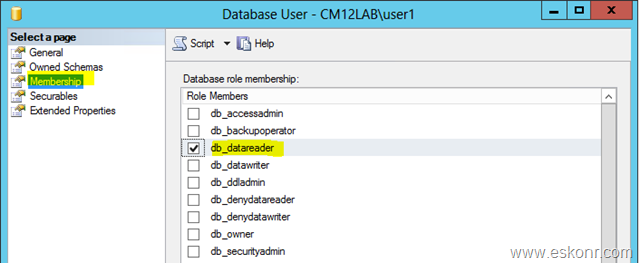
Note: The exact permissions depend on existing database security configuration and any additional explicit permissions or denials.
Step 4: Reconnect and Test the Query
Close your existing SSMS connection and reconnect to the SQL Server.
Execute your query again:
SELECT *
FROM v_PackageStatusRootSummarizer;
If the account now has the required permissions, the query should execute successfully.
If the error persists, verify that:
- You are connected to the correct SQL Server instance.
- The query is running against the correct Configuration Manager site database.
- The database user maps to the expected Windows account or security group.
- The assigned role or explicit permissions are effective for the requested view.
Security Considerations
Although db_datareader is a straightforward way to provide read access, it grants broader permissions than some users may need.
Before assigning this role, consider the following:
- Follow the principle of least privilege: Grant only the permissions required for the user’s responsibilities.
- Prefer reporting access where appropriate: Configuration Manager Reporting Services can provide a more controlled way to access reporting data.
- Avoid unnecessary database access: Not everyone who needs a report requires direct access to the site database.
- Never modify the site database directly: Use supported Configuration Manager administration tools for configuration changes.
- Work with your SQL administrator: Follow your organization’s database access and security policies.
For users who only need to execute a specific query, a more restrictive permission model may be appropriate. For example, an administrator can evaluate whether SELECT permission on specific approved views is sufficient instead of granting the db_datareader role across the entire database.
Conclusion
The SQL Server error “The SELECT permission was denied on the object” usually indicates that the account executing the query lacks the required permissions to read the specified database object.
To resolve the issue, work with your SQL Server or Configuration Manager administrator to obtain the appropriate access.
Whenever possible, use existing Configuration Manager reports or Reporting Services to retrieve the information you need. If direct SQL access is necessary, ensure that permissions are granted according to the principle of least privilege.
1 Comment
Thanks a lot